How to create and use custom stickers with your own face on them
Step 1. Download and install Bobble app from the Google Play Store (link at the bottom). Once the installation is complete, launch the app.
Step 2. You are greeted with an introductory screen that asks for permission to access your files. Grant the permission by tapping on Allow. Then the app asks you to enable the Bobble keyboard for real-time conversion of text into stickers. If you are interested in using the Bobble keyboard, follow the steps on your screen to make it your default keyboard. However, if you want to use your own keyboard app and use Bobble app separately, tap the skip at the top right corner. (In case, its features mesmerize you, you can make it your default keyboard, later.)
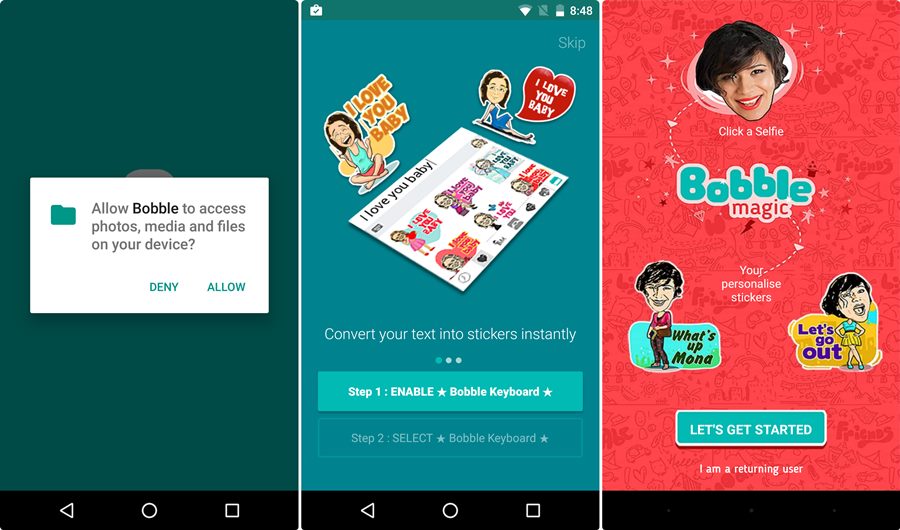
Step 3. In case you are a returning user, tap “I’m a returning user” on the next screen, otherwise hit “Let’s get started”. Further for devices running on Android Marshmallow and above, you will be asked to grant permission to use Camera.Tap Allow.
Step 4. You are then prompted to take a selfie to create your bobble head. You should, however, save your selfie pose for the real selfie, since the app requires you to take a bright front face photo and not the one with your side pose. Bummer!
Step 5. Select the gender, followed by making a choice for your preferred Bobble head from the list of Bobble heads. Tap on the Bobble head to further edit and retouch your face. Once you are satisfied with your Bobble head, tap the arrow at the top right corner to create and use your bobble head.
Step 6. You are all set now. You will see that all the stickers have your face/Bobble head on them with the emotions matching with the theme of the sticker. Tap the sticker once to share it with others and double tap it to save to the gallery.
Done
Comments
Post a Comment